A slow website can cost you visitors and search rankings. People expect pages to load fast, and Google rewards websites that do. Google PageSpeed Insights is a free tool that helps you test your site’s performance and find ways to make it faster.
This guide explains what it is, how to use it, and what steps you can take to boost your page speed score.
Table of Contents:
What Is Google PageSpeed Insights?
Why Website Speed Matters
How to Use Google PageSpeed Insights
Understanding Your PageSpeed Score
How to Improve Your PageSpeed Insights Score
Key Takeaways
FAQs
What Is Google PageSpeed Insights?
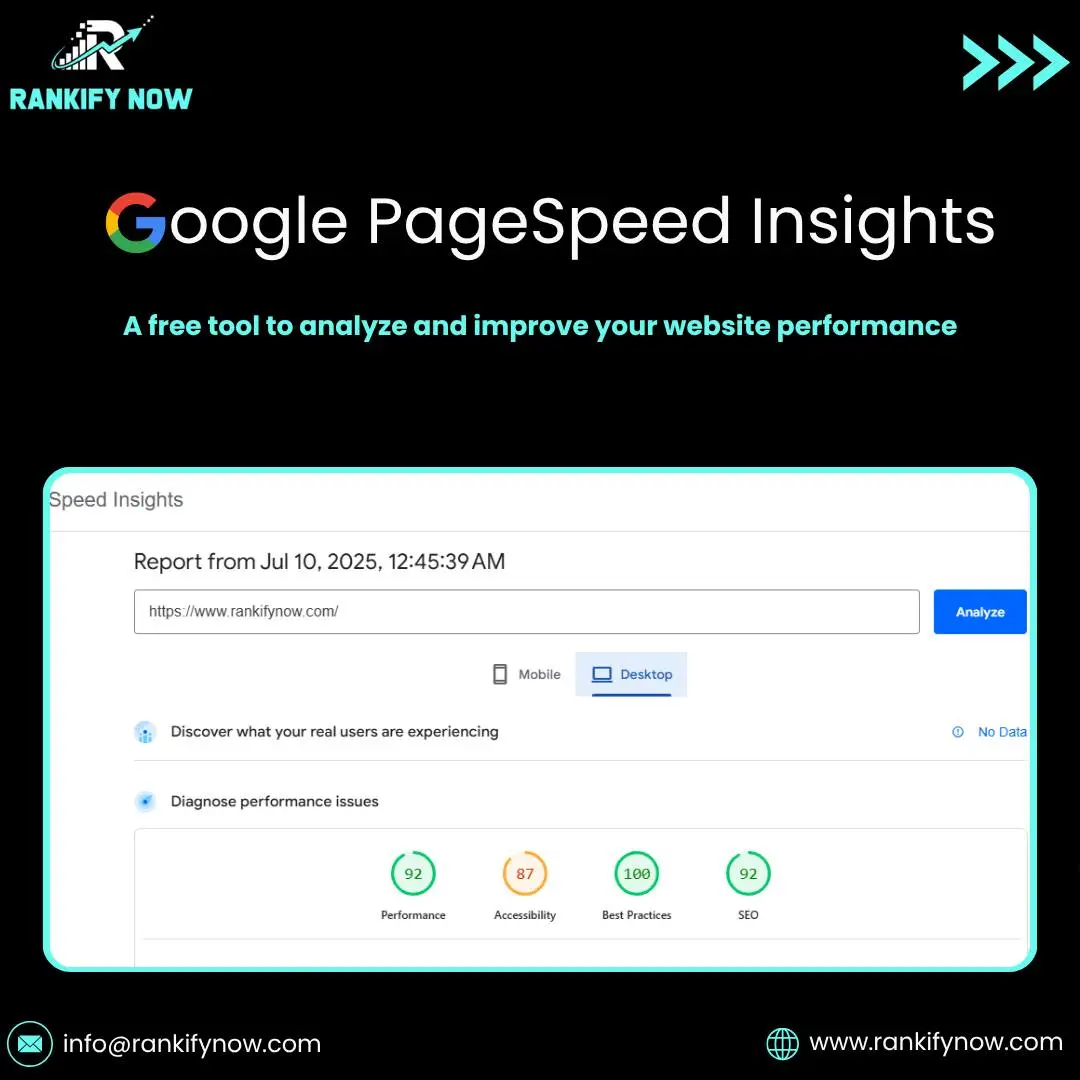
Google PageSpeed Insights (PSI) is a free tool from Google that measures how fast your website loads. It checks both desktop and mobile performance and gives you a score between 0 and 100.
Along with the score, it also lists performance issues and practical suggestions for fixing them — like reducing image sizes, removing unused code, or improving server response time.
You can access it here: https://pagespeed.web.dev
Why Website Speed Matters
A slow website affects:
User experience: Visitors leave if a page takes too long to load.
Search rankings: Google uses page speed as a ranking factor.
Conversions: Faster pages lead to higher engagement and more sales.
Studies show that if a page takes more than 3 seconds to load, over half of visitors will leave.
How to Use Google PageSpeed Insights
Step 1: Go to Google PageSpeed Insights
Step 2: Enter your website URL and click “Analyze.”
Step 3: Wait for the report. It will show results for both mobile and desktop.
You’ll see two main sections:
Performance score: A number from 0–100
Opportunities and diagnostics: Suggestions to make your site faster
Understanding Your PageSpeed Score
Here’s how to read your score:
90–100: Fast (Good)
50–89: Needs improvement
0–49: Slow (Poor)
The score is based on metrics called Core Web Vitals, which measure real-world user experience:
Largest Contentful Paint (LCP): How quickly the main content loads
First Input Delay (FID): How soon users can interact with the page
Cumulative Layout Shift (CLS): How stable the layout is during load
How to Improve Your PageSpeed Insights Score
Compress images: Use smaller file sizes without losing quality.
Use browser caching: Store static files locally to reduce load time.
Minify CSS, JavaScript, and HTML: Remove unnecessary spaces and code.
Use a content delivery network (CDN): Load content faster for global visitors.
Enable lazy loading: Load images only when they appear on the screen.
Upgrade hosting: Slow servers can drag down your speed.
Limit plugins: Too many can slow your site down.
If you’re using WordPress, plugins like WP Rocket, LiteSpeed Cache, or Autoptimize can automate many of these fixes.
Key Takeaways
Google PageSpeed Insights measures how fast your site loads.
It gives you a score and detailed suggestions for improvement.
Website speed affects SEO, user experience, and conversions.
Simple fixes like image compression, caching, and code minification can make a big difference.